

Sharing content among apps using AppEntity and Transferable protocol

A fundamental characteristic of Apple’s ecosystem user experience is that everything feels like being in one connected system no matter on which of your Apple devices you are operating: think about the capability of copying something from your mac and paste it effortlessly on your iPhone, for example, or AirDrop technology that allows you to share files instantly between nearby devices without thinking about file systems or transfer methods. This same feeling and philosophy are now also being applied across apps on a single device.
Users rarely work in just one app from start to finish: they may create something in one app, send it to another to apply specific edits, and then pass it to a third to reuse the final result. This is part of the everyday workflow of most users.
In these situations, users don’t want friction. They don’t want to manually export what they need to pass to another app, awkwardly copy and paste the content they need to move, or temporarily save files they are going to open again in another app. The user experience should feel native, smooth, and instant.
From a developer’s perspective, supporting this kind of experience means creating apps that integrate well with the system, apps that work with everything else, or almost, that is in the user’s device.
In this short tutorial, we are going to explore how to expose and share app content among different apps; to achieve such a result, we will:
- Conform to the Transferable protocol the AppEntity;
- Test the result via the Shortcuts app.
Before we start
To address the topics we are going to leverage on a simple sample project: a book library app that lets you keep track of your books on your shelf.
This starter project contains:
- View folder:
BooksListView- shows the stored books as a listBookDetailView- presents the details of a stored bookAddBookView- handles the addition of a new oneWebView- rendering the file
- Model folder, collecting all the model files
Book- defines the book typeDataModel- data persisted usingSwiftData
- Manager folder
NavigationManager- handles navigation within the appDataManager- handles the data operations
- The
BooksShelfTrasferableAppfile - the entry point of the app - Intents folder - collecting all files related to intents
BookEntity- handling theAppEntityfor theBookmodelOpenBookIntent- handling theAppIntentthat allows opening a specific bookShorcutsProviders- handling theAppShortcutsProviderconforming type that enables the invocation of the intents via vocal commandsSearchIntent- handling theAppIntentthat allows to perform research inside your appAddBookIntent- handling theAppIntentthat creates a new instance of a bookAddTestingBooksListIntent- handling theAppIntentthat creates new instances of book for testing purposes.
The NavigationManager and the shared Modelcontainer are initialized at the app entry point. Launch the app and start storing your books; they will be needed to launch and test.
Conform the BookEntity to the Transferable protocol
Inside our project, we want our BookEntity data to be sharable between our app and some other ones, such as Notes. To achieve this behavior, we need BookEntity to conform to the Transferable protocol.
Transferable is responsible for making the content ready to be sent outside the app scope; it ensures that the transferred object is exposed to the system in a way understandable to other apps.
Step 1 - Conform your AppEntity to Transferable protocol.
// 1.
import CoreTransferable
...

// 2.
extension BookEntity: Transferable{

}
- Import
CoreTransferableframework. - Conform the
BookEntitytoTransferableprotocol.
At this point, you will be prompted with an error: Xcode will ask you to provide the build body for the transferRepresentationproperty. Don’t worry about it; we'll fix it very soon.
Step 2 - Implement transferRepresentation property.
extension BookEntity: Transferable{
    // 1.
    static var transferRepresentation: some TransferRepresentation {
    }

}
- Implement the
transferRepresentationproperty.
transferRepresentation is the representation used to import and export the item outside the app's scope.
When you create custom types, they live in the scope of your app, and third-party apps may not recognize them because they are custom. This means that apps such as Notes or Pages don’t have any understanding of what our custom Book is and how it is defined because that custom type does not exist in the scope of those apps.
So, what the Transferable protocol does is assuring that you store inside the transferRepresentation a combination of multiple existing transfer representations that describes how to transfer an item in multiple scenarios, mostly relying on built-in types that can be easily recognized; for example, you can provide Book as Data, you can create a String that represent its content, or you can represent it as another custom type that is recognizable by another of your apps; this collection is what is exposed to the system, and when other apps have to import your custom type, they will see from this list of different types representations only what they are able to recognize and handle.
For our example, since we want to share the Book content with the Notes app, we will rely on aString representation.
extension BookEntity: Transferable{
    // 1.
    var plainText: String {
        let body =
        """
        📘 \(title ?? "Untitled")
        ✍️ Author: \(author ?? "Unknown")
        📚 Type: \( contentType?.rawValue ?? "—")
        🏷 Genre: \(genre ?? "—")
        """
        return body
    }

    static var transferRepresentation: some TransferRepresentation {
        // 2.
        ProxyRepresentation(exporting: \.plainText)
        // 3.
        .visibility(.all)
    }

}
- Define a computed property plain text representation of the
Bookas aString. - Define a
ProxyRepresentationof it.
There are differentTransferRepresentation, depending on which app is going to receive it and how it will be used, you decide how to expose your object. In our example, we represented our object as aProxyRepresentationas we are relying on aStringtype, a built-in type recognizable by Notes app. - Optionally, set the
TransferRepresentationVisibilityanallusing thevisibility(_:)method to handle which apps and processes can actually see an object to be transferred.
Test it via the Shortcuts app
To test that the content of our books is actually shareable among our app and Notes one, we will create a shortcut in the Shortcuts app.
- Build the app on your device.
2. From the Shortcuts app, create a new shortcut adding the “Add a testing books list to your shelf” intent.
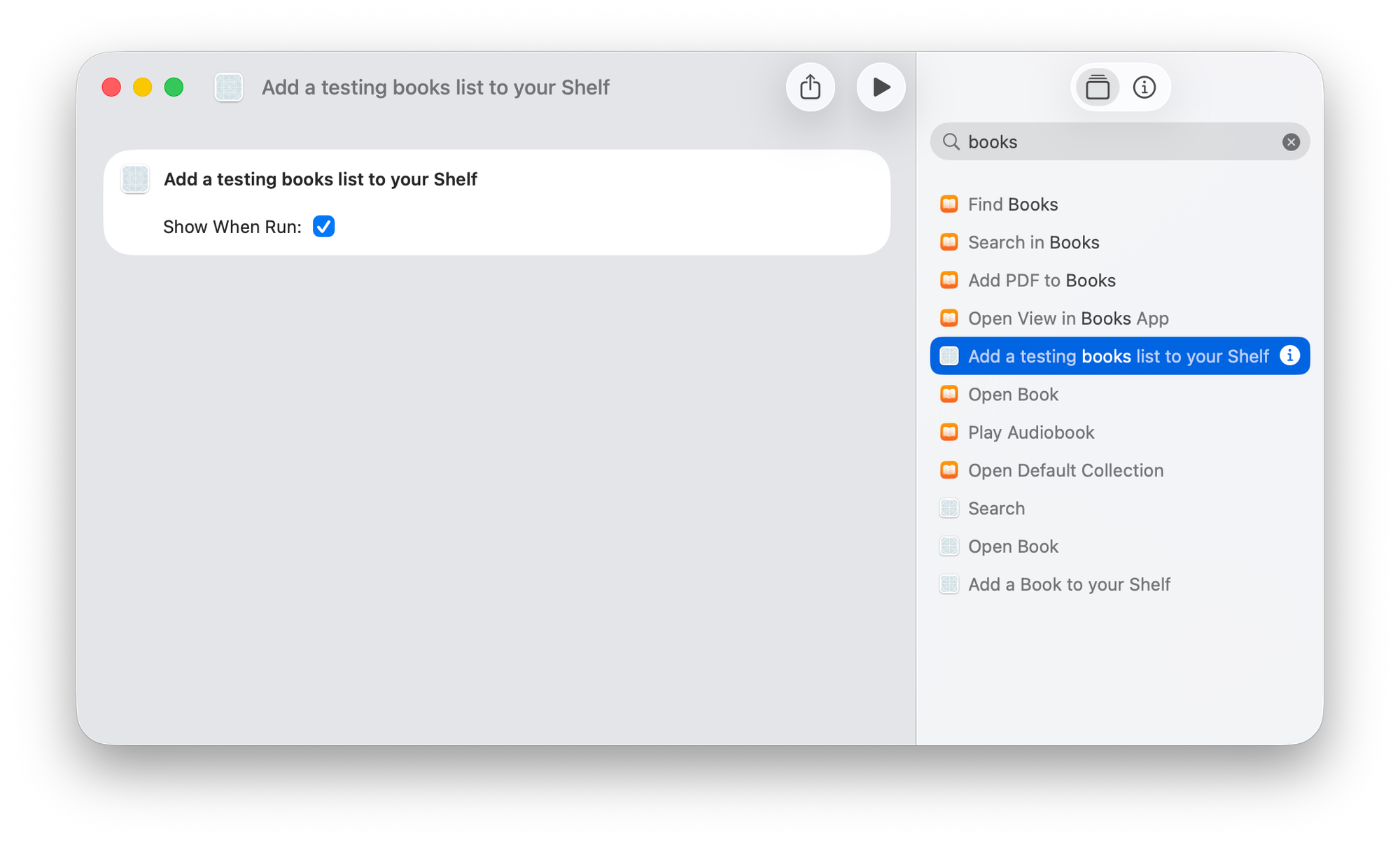
3. Launch the shortcut by pressing the play button. This will easily populate the list of books inside your app.
4. From Shortcuts app, create a new shortcut:
- Add the “Open book” intent and choose one book to open.
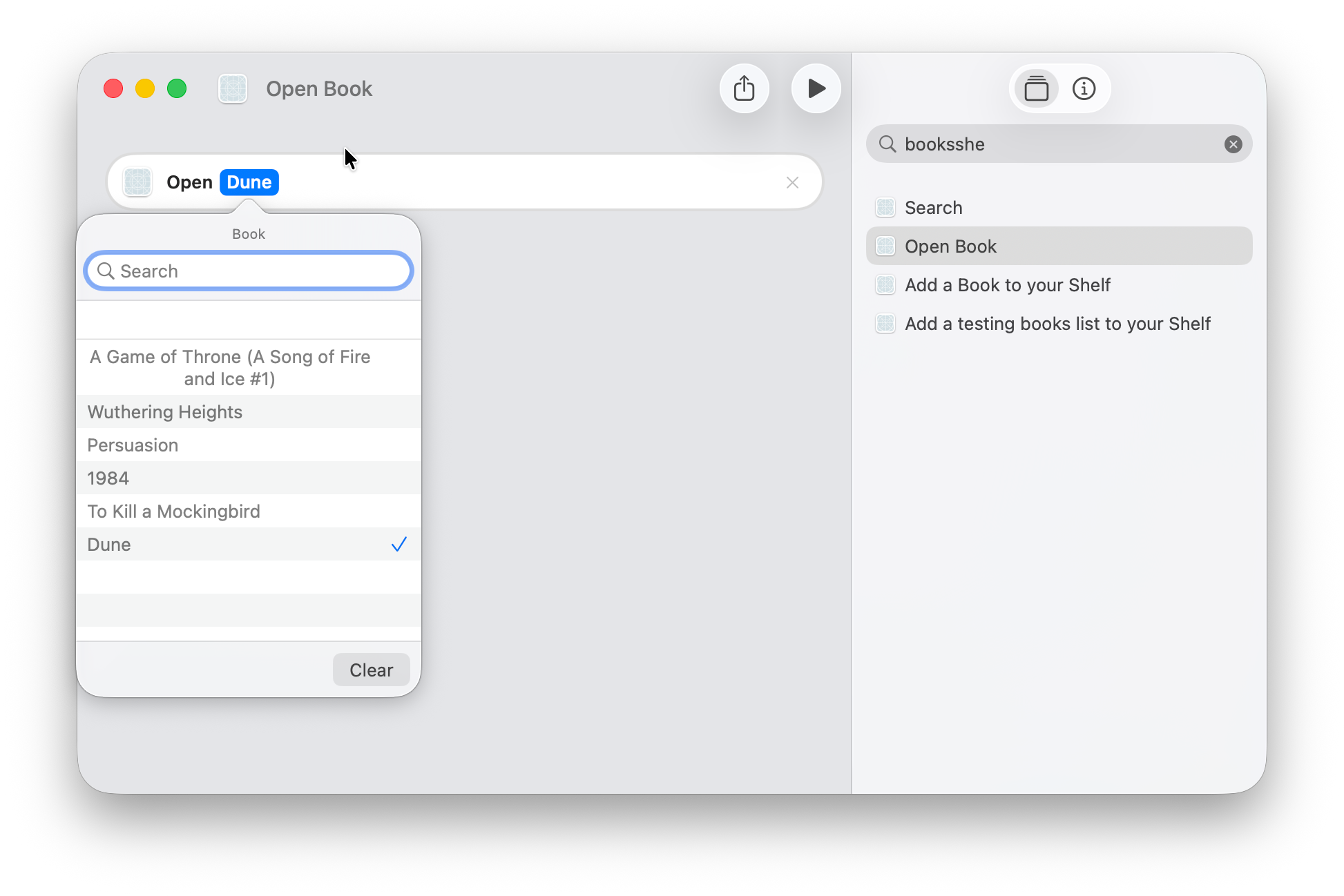
b. Add the “Share with Apps” intent.
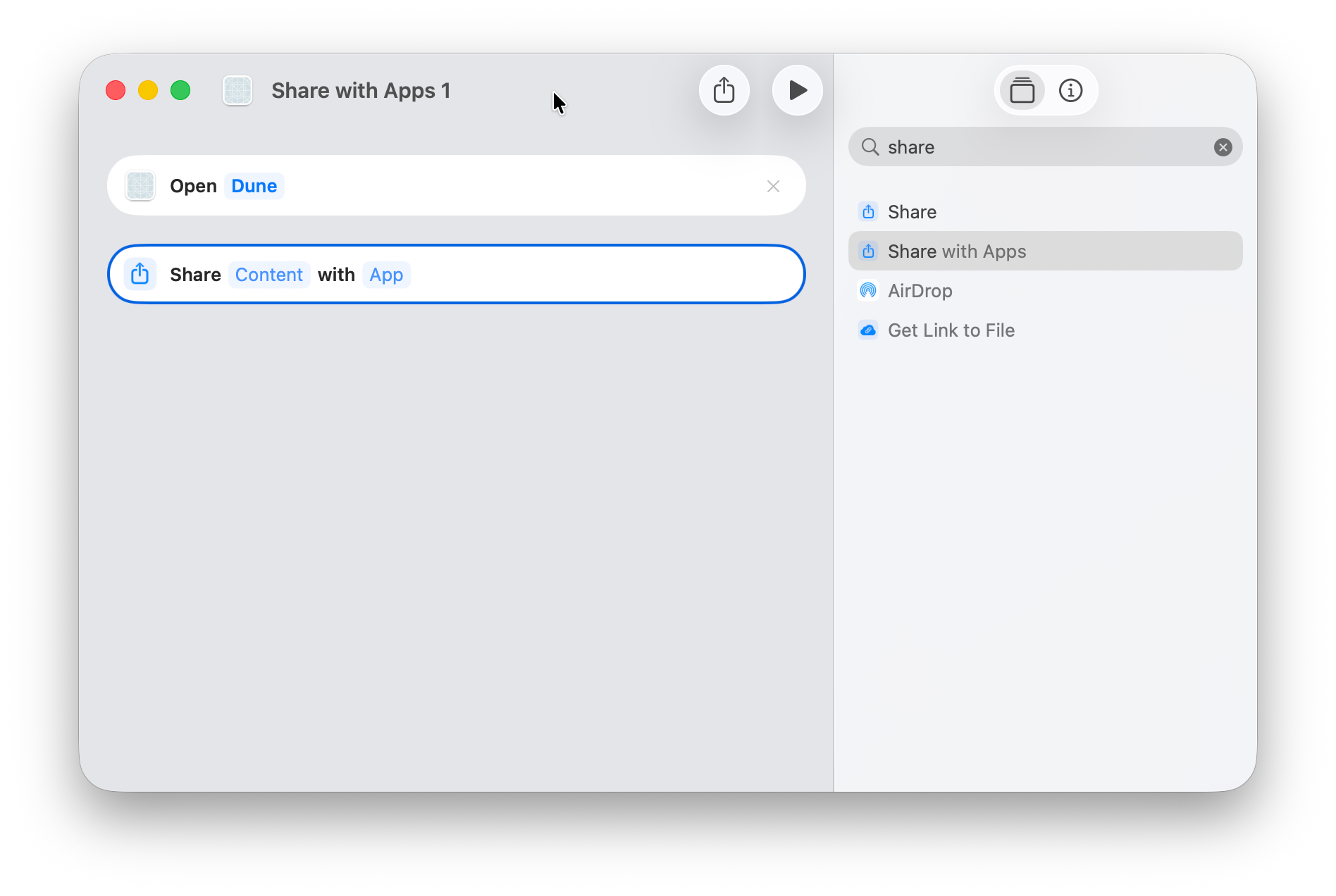
c. Choose Open Book as content.
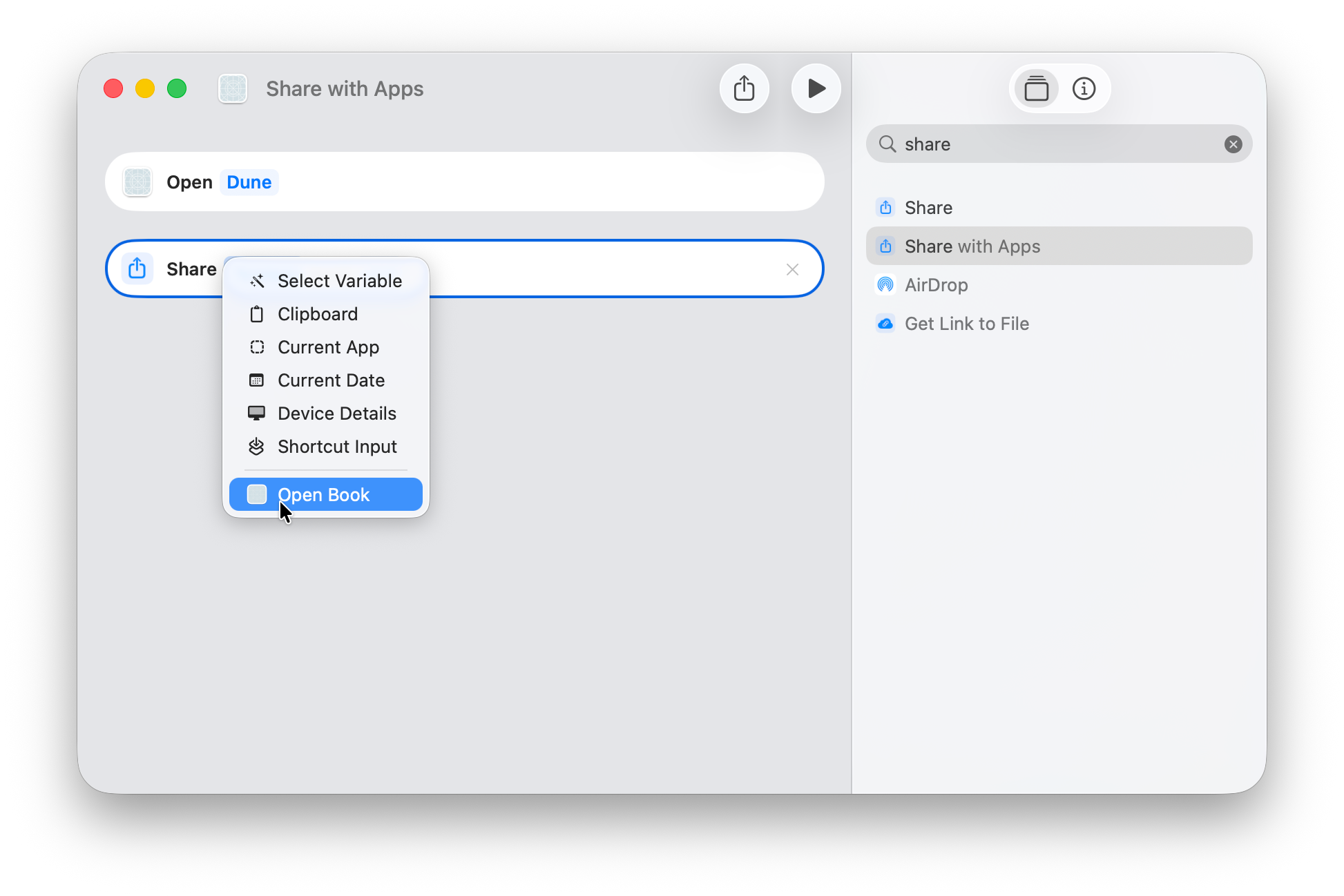
d. Choose Notes as with.
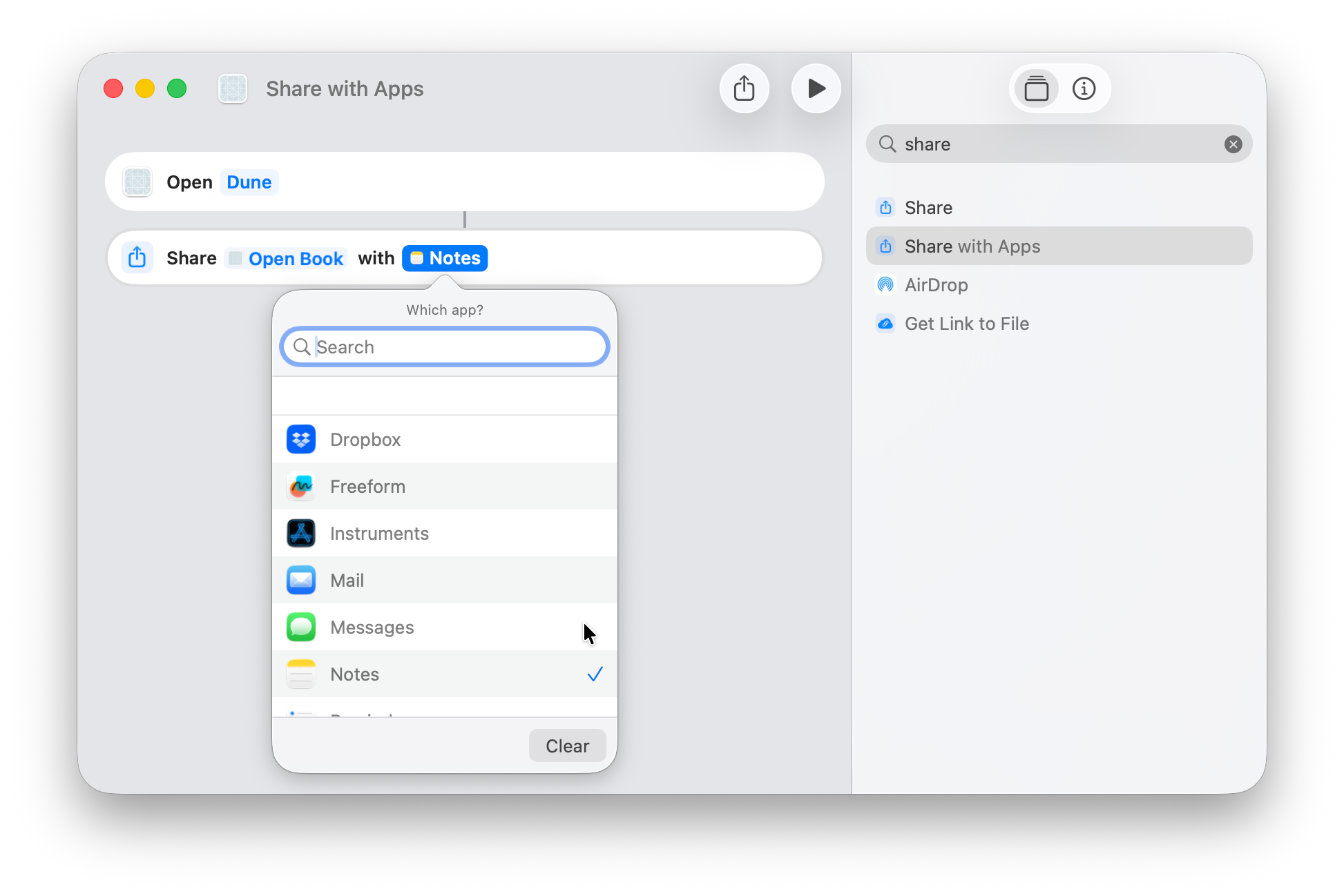
e. Press on Open Book and set the type on text.
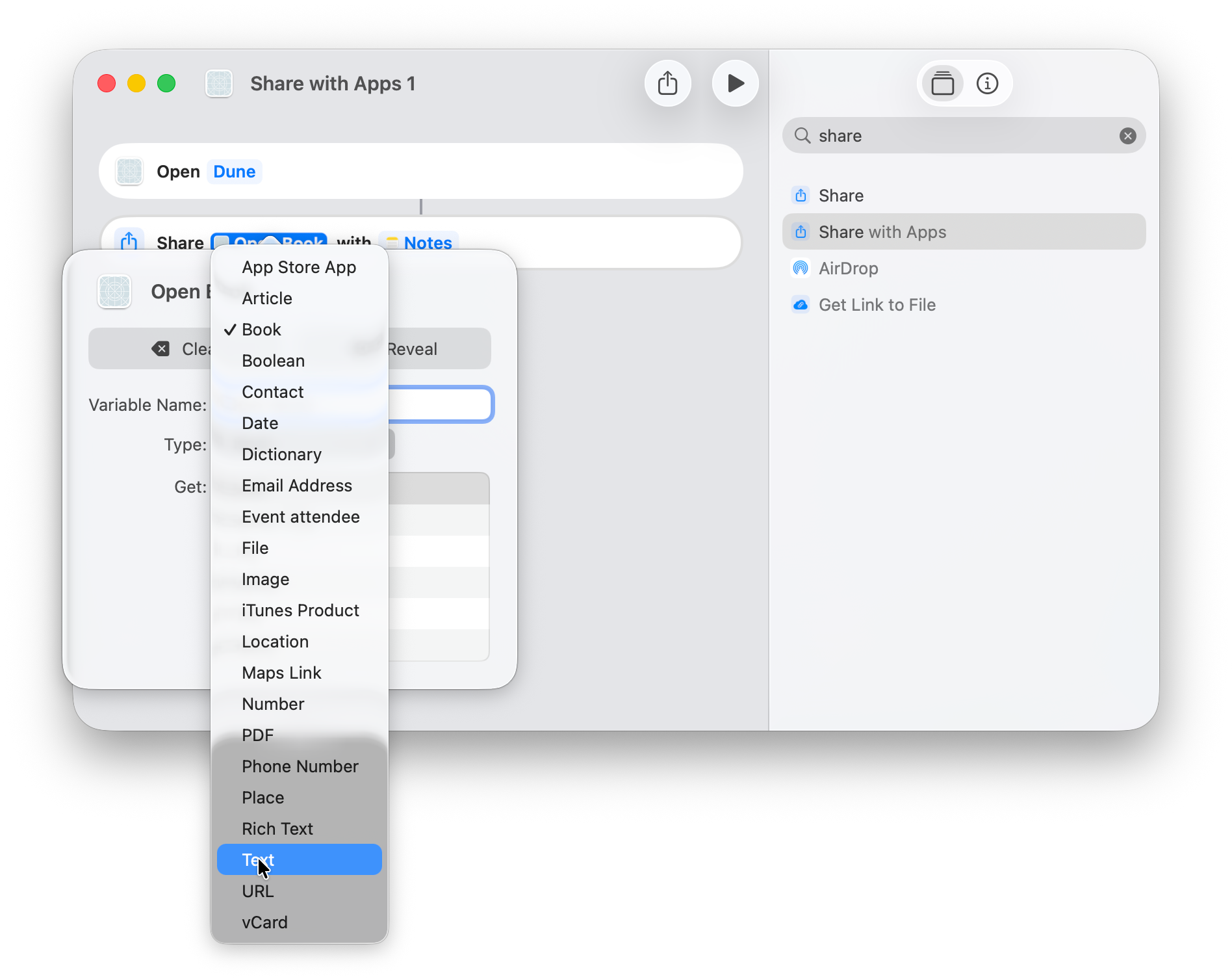
f. Launch the shortcut by pressing on the play button.
g. Save the note.
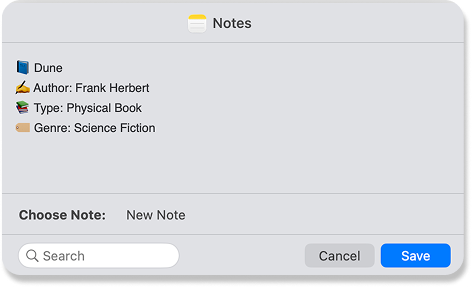
Now, if you move inside your Notes app you, will find a new note created with the plain text representation of the book.
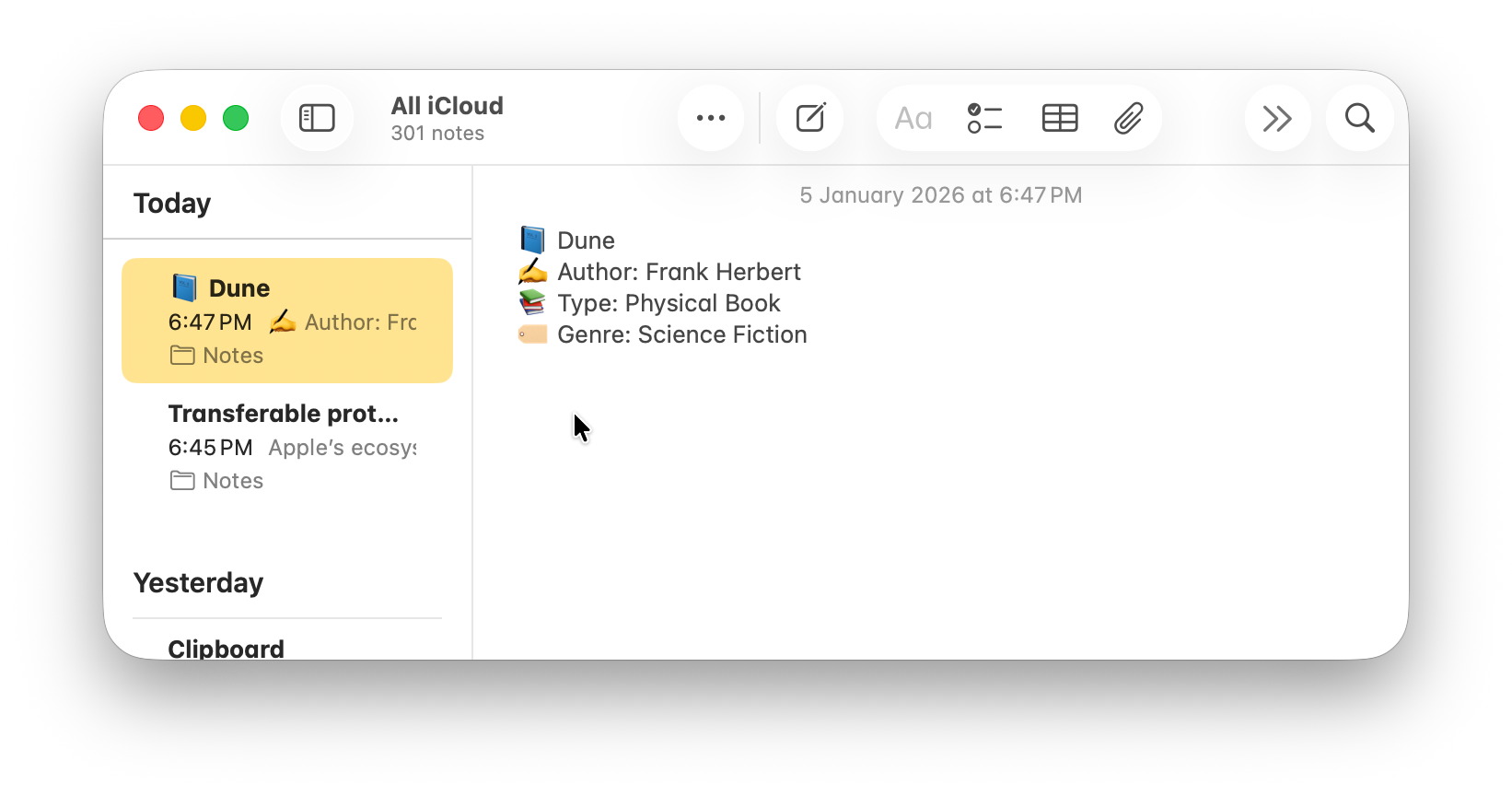
To recap, we have explored how to conform an AppEntity to the Transferable protocol, how to create a transferRepresentation to represent as a String a custom type to make it ready to be recognized by apps that deal with this kind of types, and finally how to test the sharing of the content in between our app and Notes.
This is the final project.
In this era when Apple is clearly moving towards app intents, automation, Siri integration and artificial intelligence, learning how to expose to and share your data with the system in a structured way becomes fundamental to enable interactions with the content in your app and other apps.
Siri doesn’t work with the UI, it works with data and app intents. In order to move content between apps, it first needs to understand the type the content is represented by. This goes as well for shortcuts and automations. As we have just seen, to make this possible, the system relies on the AppEntity of your custom objected and it TransferRepresentation allows to transfer content in between apps by making it understandable by shortcuts - we hope very soon by Siri too.